


The Best Practices for Slicing Models for 3D Printing
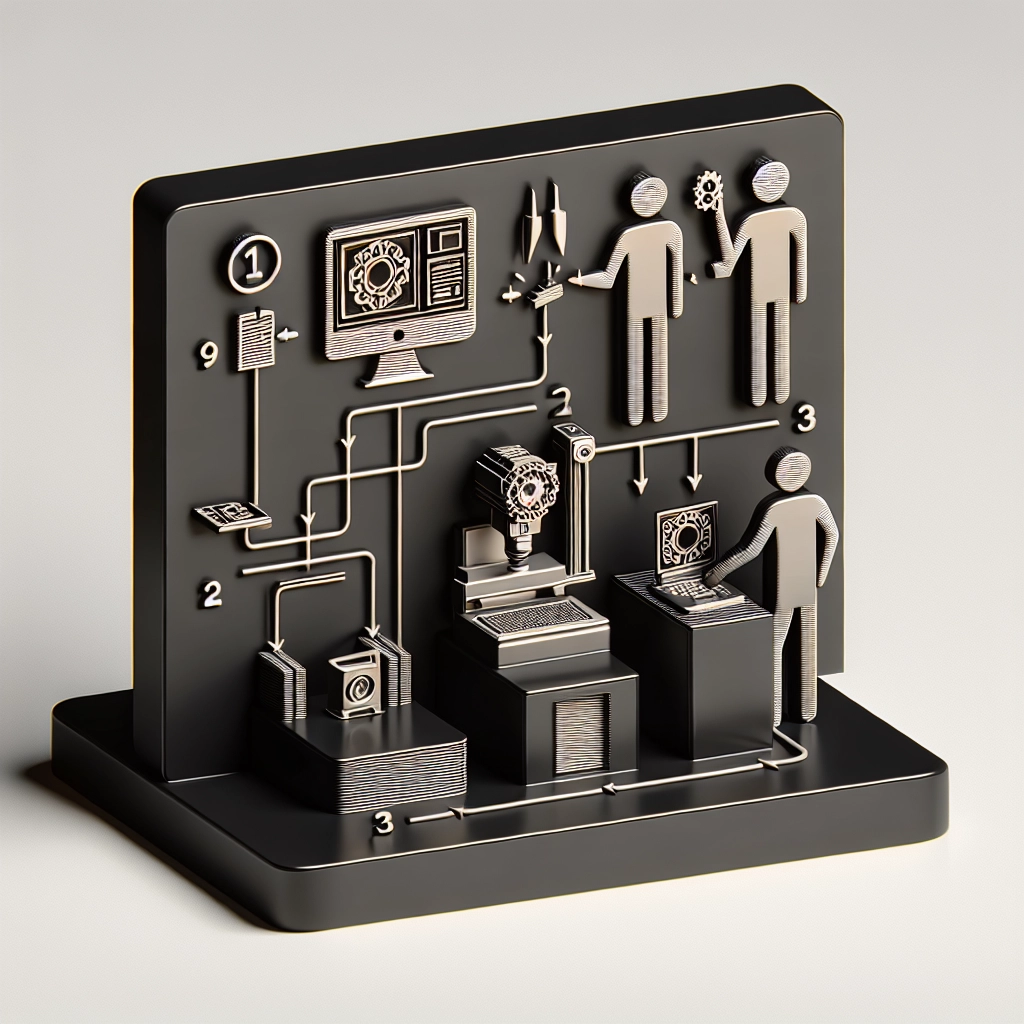
If you’re venturing into the world of 3D printing, you’ve probably heard the term “slicing” thrown around quite a bit. Slicing is essentially the process of converting a 3D model into a format that a 3D printer can understand—kind of like translating the blueprints of a building into the voice of a construction worker. While it sounds simple, there’s a bit of technique involved to ensure that your printed models come out beautifully. Let’s dive into some best practices that can help you slice your models like a pro!
1. Understand the Basics of Your 3D Printer
Before you start slicing, it’s crucial to know the specifications of your 3D printer. Different printers have different capabilities, like layer height, print speed, and nozzle diameter. For instance, if you have a printer that works best with a layer height of 0.2mm, slicing at 0.4mm will yield less than ideal results. Familiarize yourself with your printer’s capabilities and set your slicer settings accordingly.
2. Choose the Right Slicing Software
There is an array of slicing software options available, each with unique features and benefits. Popular choices include Cura, PrusaSlicer, and Simplify3D. Do a bit of research to find out which one best suits your needs; some have advanced features like customizable supports, while others focus on ease of use. Don’t hesitate to spend time experimenting with a couple of different slicers to see which one resonates with you.
3. Optimize Your Model
Before slicing, it’s essential to ensure your 3D model is optimized. This could mean removing unnecessary details that won’t be seen in the final print or ensuring that your model is manifold—meaning it’s a solid object without any holes or non-manifold edges that may confuse the slicer. Most design software like Blender or Tinkercad can help you with these optimizations, but there are also online tools like Netfabb that can automatically fix certain issues.
4. Consider Layer Height and Resolution
Layer height dramatically affects the resolution and speed of your print. A smaller layer height results in better detail but takes longer to print. If you’re printing a prototype that doesn’t need to be perfect, a larger layer height can save you time. On the other hand, if you’re making something for display or cosplay, a smaller layer height will give you that smooth finish. Strike a balance based on the purpose of your print!
5. Explore Fill Density Options
The infill density determines how solid your print will be. A higher fill density increases strength but also uses more filament and increases print time. For decorative objects, a fill density of 10-20% is typically sufficient, while functional parts may require 50% or more. Try to match the infill with the purpose of your print to optimize material usage and printing time.
6. Use Supports Carefully
Supports are great for complex models or those with overhangs, but they can sometimes be tricky to remove and may leave marks on your print. Most slicing software allows you to customize support generation, so consider using supports only where absolutely necessary. You might also find options to use breakaway supports if you want an easier removal process.
7. Temperature Settings Matter
Getting the right temperature settings for your filament is crucial for adhesion and overall print quality. Each material—PLA, ABS, PETG—has its own optimal temperature range. Make sure you read the manufacturer’s recommendations and adjust the temperature in your slicer accordingly. You may also consider adjusting the cooling fan speed for certain filaments to optimize the cooling process as your print progresses.
8. Preview Your Print
Most slicing software has a preview feature that allows you to see a layer-by-layer simulation of your print. This is your opportunity to catch any potential problems in your model before you hit that print button. Look for areas that may need additional supports, check layer alignment, and make sure there are no unexpected actions that may cause a failed print.
Wrapping It Up
Slicing models for 3D printing may seem daunting at first, but don’t let that discourage you! The more you practice and experiment with different settings, the easier it becomes. Remember, each print is an opportunity to learn and refine your process. Soon, you’ll develop an intuition for what works best for your models and printer. So go ahead—slice it, print it, and enjoy the beautiful, tangible results of your creativity! Whether you’re crafting a delicate ornament or an engineering marvel, happy printing!