


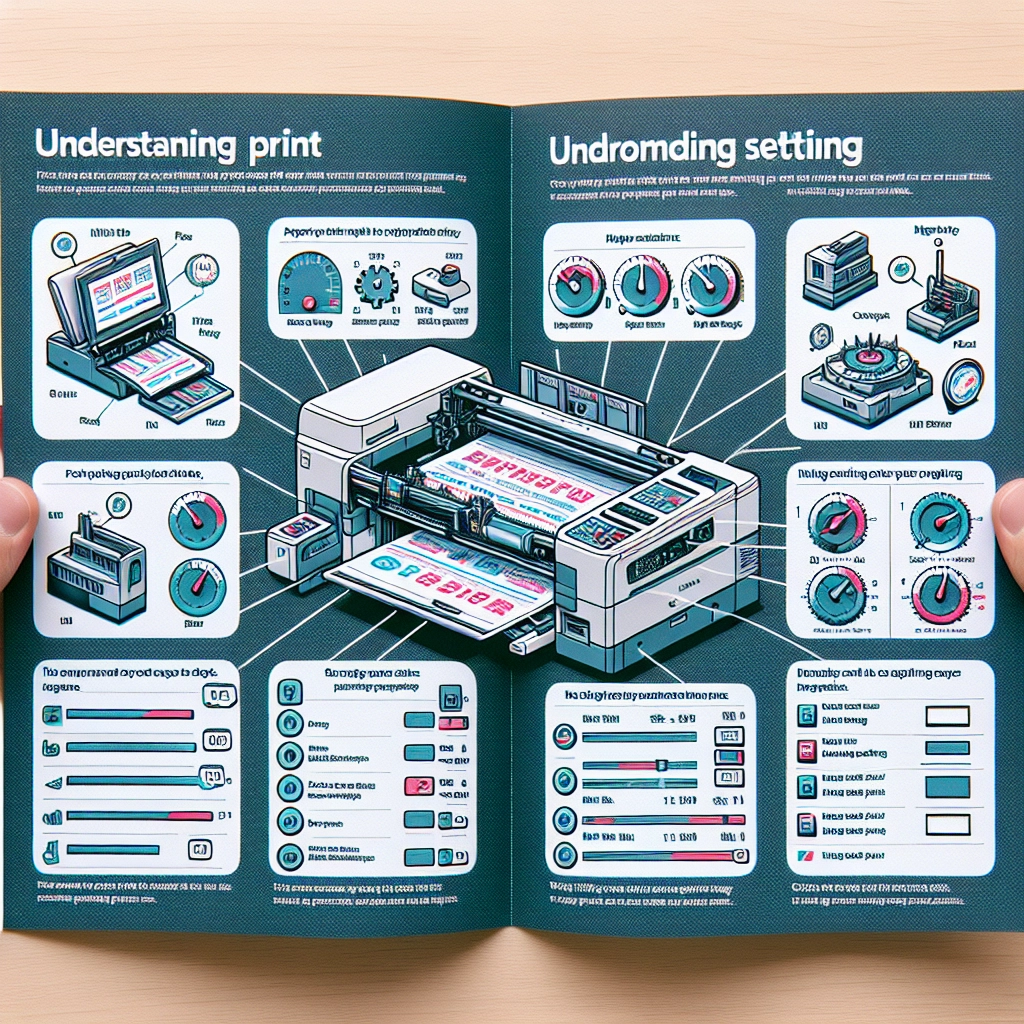
Understanding Print Settings: Enhancing Quality and Speed
Whether you’re printing documents for work, school projects, or cherished photos, the quality and speed of printing are essential factors to consider. With so many options and settings available on modern printers, navigating through them can sometimes feel overwhelming. Fear not! Today, we’ll break down the basics of print settings to help you enhance both quality and speed, allowing you to get the most out of your printer.
The Basics of Print Quality
When it comes to print quality, several elements play a crucial role. The most noticeable factor is resolution, typically measured in dots per inch (DPI). Higher DPI translates to finer details and crisper images. For everyday documents, a resolution of 300 DPI is usually more than sufficient. However, if you’re printing high-quality photos or graphics, consider upping that to 600 or even 1200 DPI for a sharper result.
Media type is another important setting to keep in mind. This defines the kind of paper or material you’re using for printing. Printers usually have presets such as “Plain Paper,” “Photo Paper,” or “Glossy Paper.” Selecting the right media type not only improves the print quality but also affects the drying time and color vibrancy. For instance, if you’re printing a family portrait on glossy photo paper, set your printer to acknowledge that material so it can adjust the ink application accordingly.
Speed vs. Quality: Finding the Right Balance
Many printers come with multiple settings that allow you to choose between draft, standard, and high-quality modes. Draft mode often prints faster because it uses less ink and lower DPI—great for printing out basic text documents that don’t need to look perfect. On the other end, high-quality printing takes longer and might use more ink, but it’s ideal for those important presentations or cherished photographs.
If you’re concerned about time but still want decent quality, opt for standard mode. This setting strikes a good balance between speed and clarity, making it more than adequate for documents or images that don’t require the absolute best quality.
The Role of Color Management
Color management can also greatly affect printing outcomes. Most printers have color settings, including options for CMYK (cyan, magenta, yellow, and black) and RGB (red, green, blue). While most printers are calibrated to work well in CMYK mode—for printed outputs—the RGB option is often better suited for screen displays. If you’re designing something digitally and need the colors to translate well into print, make sure to convert to CMYK before printing.
Additionally, some printers come equipped with features like automatic color correction or manual color adjustment. If your printouts come out looking a bit off, you can adjust brightness, contrast, and saturation. Play around with these settings until you find the right mix that meets your needs.
When to Use Advanced Features
Modern printers are packed with advanced features that can improve the output but might not always be necessary. Double-sided printing is a fantastic option to save paper and create professional-looking reports or booklets. If your printer has this capability, it’s worth taking advantage of, especially for larger documents.
Another great feature is borderless printing, especially useful when printing photos. Borderless prints are typically more striking, making your images pop, but they may take slightly longer to print.
Don’t forget to explore your printer’s settings menu to see what other options it offers. From adjusting the brightness for faded images to using fine-tuning settings for color outputs, you might discover new features that could enhance your final prints.
Maintenance Matters
Lastly, to enhance both the quality and speed of your prints, regular maintenance is key. Ensure that your printer heads are clean and that you use good quality ink cartridges. Clogged print heads can lead to streaks in your prints, while using low-quality ink can compromise color accuracy. Follow manufacturer guidelines for cleaning and replacing cartridges to keep your printer in top shape.
As you dive into the world of print settings, remember that practice makes perfect! Experiment with different resolutions, media types, and color settings to see what works best for your needs. By understanding the various print settings and how they interact, you’ll be well on your way to enhancing both the quality and speed of your print jobs. Happy printing!