

How to Troubleshoot Common 3D Printing Issues
3D printing is an incredible technology that brings your creative ideas to life, but sometimes, it can feel like a bit of a roller coaster ride. Whether you’re a seasoned pro or a budding hobbyist, encountering issues with your 3D printer is almost a rite of passage. The good news? Most problems can be resolved with a bit of troubleshooting. Let’s explore some common 3D printing issues and how to tackle them, all while keeping your spirits high!
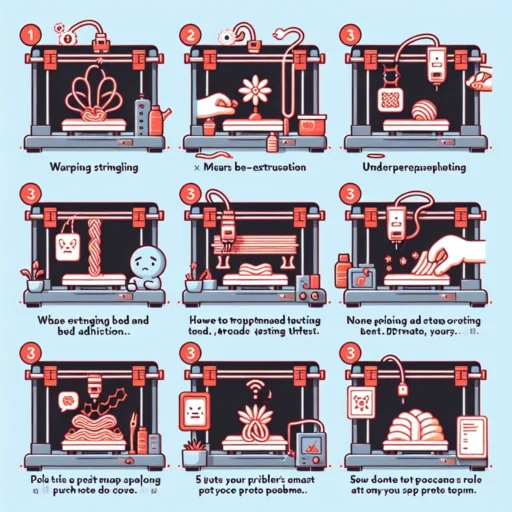
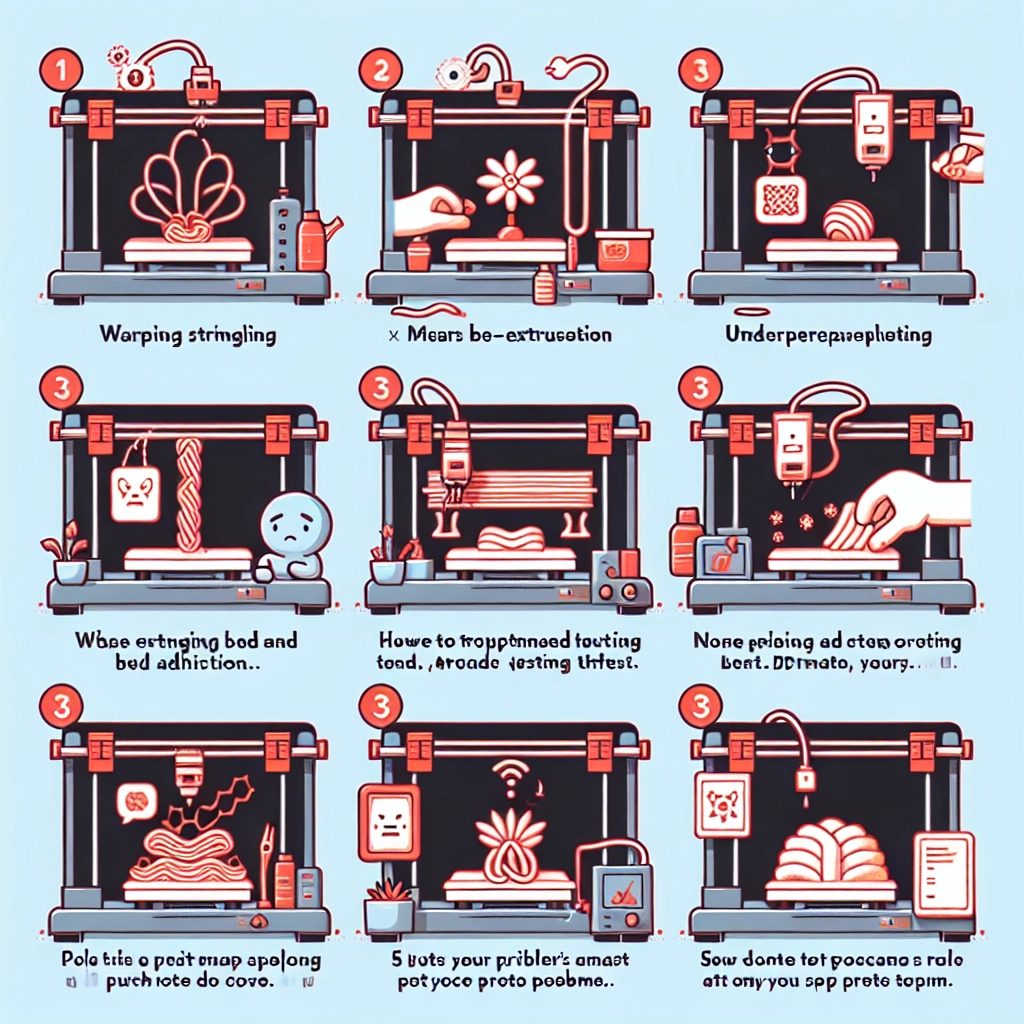
1. Warping
Ah, warping—the nemesis of many a 3D print. If you’ve ever opened your printer and found a part that’s curled up like a potato chip instead of lying flat, you know the struggle. Warping typically occurs when the material cools unevenly, causing it to lift from the print bed.
Tips for resolution:
- Check your print bed temperature: Sometimes, maintaining a consistent temperature can help in combating warping. Consider using a heated bed if you’re not already, as it keeps the base warm and reduces thermal stress.
- Use adhesive: Applying glue stick, painter’s tape, or a specialized adhesive can help the material stick to the bed better, preventing warping.
- Adjust your design: If you’re creating a large base, try adding brims or rafts. These extra layers can provide more surface area for adhesion.
2. Stringing
If you’re noticing thin strings of plastic connecting parts of your print—like spaghetti on a bad day—it’s time to address stringing, also known as oozing. This happens when the nozzle leaks filament while moving between different areas.
What to do:
- Adjust your retraction settings: Most slicing software has retraction settings that control how much filament is pulled back when the nozzle is moving. Increasing retraction distance and speed can help minimize stringing.
- Lower temperature: Sometimes, simply lowering the printing temperature can reduce oozing. Each filament has an ideal range, and playing around within that can work wonders.
- Travel moves: Some software allows you to optimize travel moves—ensuring the nozzle travels across empty space without causing stringing by changing its path.
3. Layer Separation
Layer separation occurs when layers of your print begin to come apart, resulting in a structurally compromised piece. This can be due to various reasons, such as insufficient bonding or improper temperature settings.
Steps to address this:
- Increase print temperature: Often, a higher temperature can improve layer adhesion. Be careful not to exceed the filament’s recommended range, though.
- Adjust print speed: Slowing down how quickly you’re printing can give the material more time to bond with the previous layer.
- Consider your filament: Different filaments have different properties. If you’re battling consistent layer separation, it might be time to experiment with a new type of material.
4. Nozzle Clogs
We all know that feeling when the printer suddenly stops and we find out that the nozzle is clogged. This can be incredibly frustrating but common, especially if you’re switching types of filament frequently.
How to fix it:
- Physically clean the nozzle: If you suspect a clog, using a needle or nozzle cleaning kit can help clear out any blockages.
- Cold pull method: This technique involves heating the nozzle to the print temperature, then cooling it down quickly while pulling out the filament. This can help dislodge any gunk off the nozzle.
- PVC or PTFE tubing: Make sure your filament path is clean and free from any obstructions or debris, as this can contribute to clogs.
5. Under-extrusion
If you’re noticing gaps in your print, decreased quality, or parts missing, you might be dealing with under-extrusion. This occurs when your printer isn’t pushing out enough filament, leading to a weak or incomplete print.
To troubleshoot:
- Check for clogs: Begin with ensuring there are no clogs in the nozzle.
- Filament diameter settings: Ensure your slicer is set to the correct filament diameter. If you’re using a 1.75mm filament, make sure it’s not set to 2.85mm.
- Extrusion multiplier: Adjusting the extrusion multiplier in your slicer software can help balance the flow of filament.
Navigating the world of 3D printing might come with its fair share of hiccups, but each problem you encounter and solve is a step towards becoming a more skilled printer. Remember, patience is key. Each failed print is simply a lesson in disguise—it brings you closer to mastering this amazing craft. And who knows? The next creation you bring to life might just be your best one yet! Happy printing!